
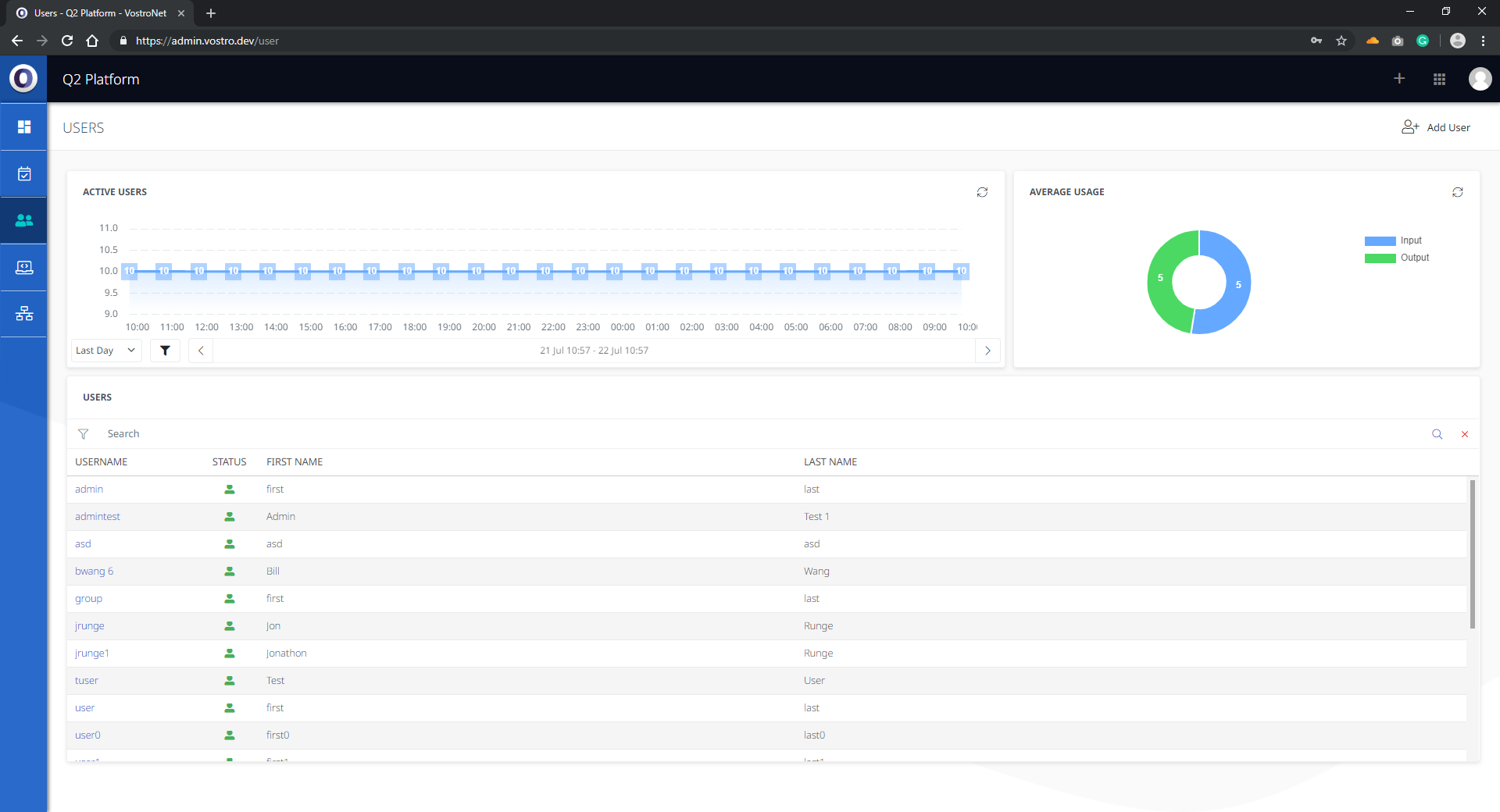
The Users section displays a list of users on the network and information on user data consumption and active user numbers.
Existing users on the network can be searched via the search bar at the top of the users panel. Entries in the user list can be sorted by first name, last name or username. 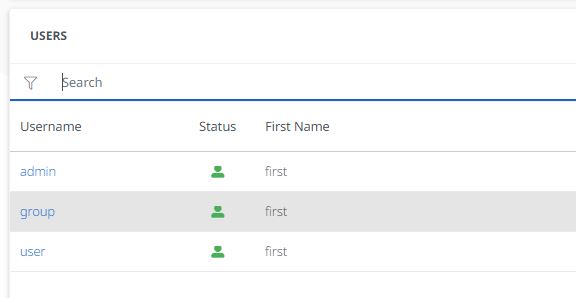
Clicking on an individual user on the user list brings up a display containing detailed information on the user. This includes user details, contact information and number of devices: 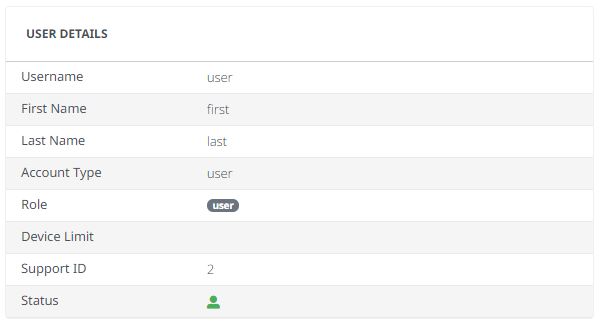
Additional information displayed includes Group memberships, devices connected, credentials and Private Mesh memberships.
The Network Utilisation panel displays a visual representation of the user’s network usage over a period of time. The time period displayed can be adjusted by using the dropdowns and filters found at the bottom of the panel.
Create a User:
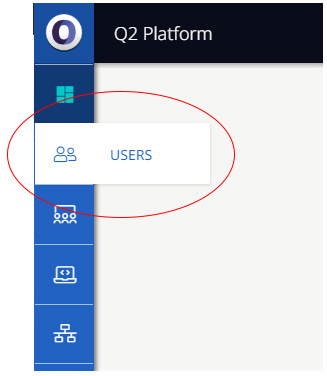
- Navigate to the Users page by clicking the ‘Users’ button in the left-hand navigation bar.
- Add users by clicking the ‘Add User’ button on the type top right-hand side of the display.
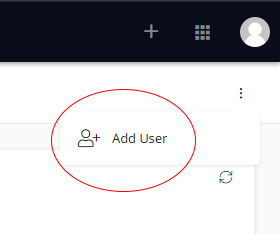
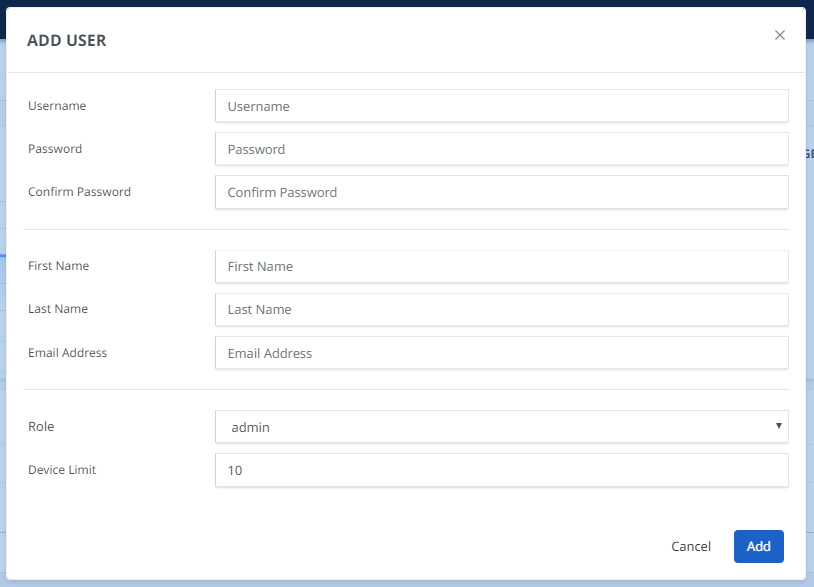
- Complete the user details in the spaces provided and click Add.
Edit Users
Edit, disable accounts and reset passwords at any time by clicking on a user’s username in the user list: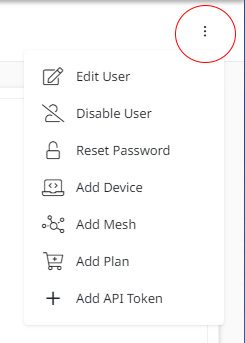
Edit User
Update the user’s details via the edit user button and click Save. 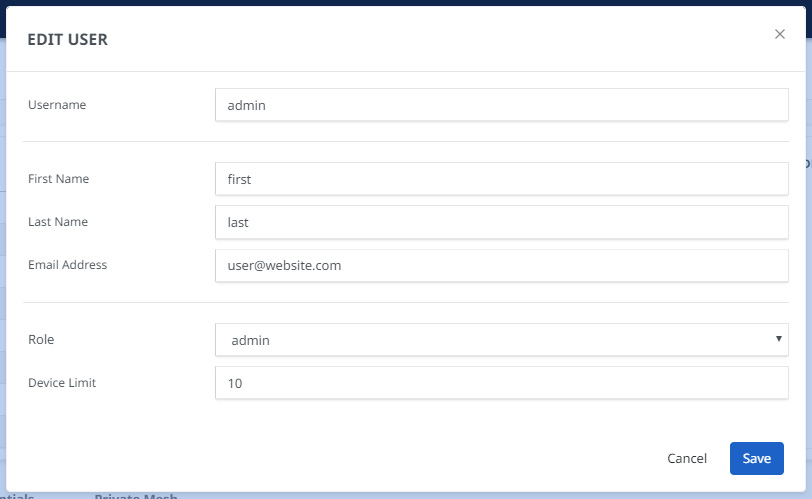
Disable User
De-activate a user’s account via the Disable User section. 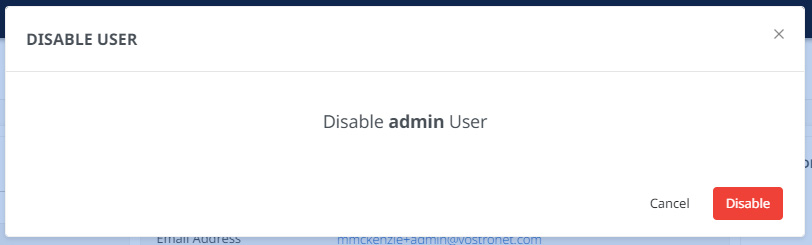
Reset Password
Has the user forgotten their password? Update the password via this button and click Reset.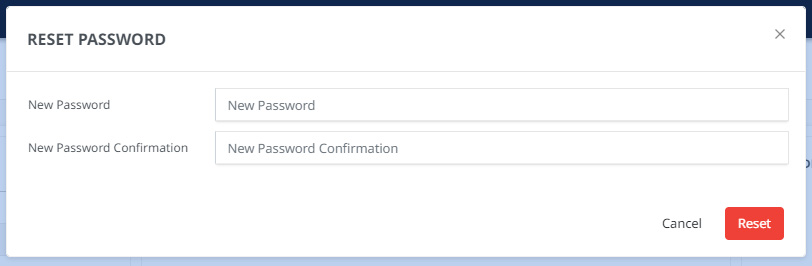
Add Device
Add a device to the user’s account via this section. Filter devices via the Mac Address or Hostname. 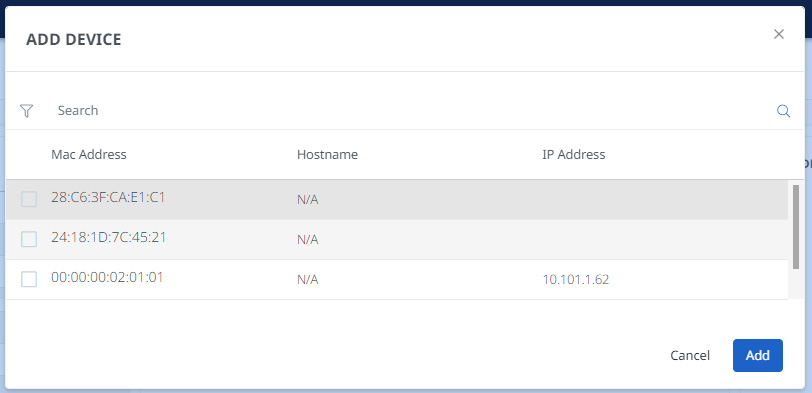
Add Mesh
Add Private Mesh memberships to a user through this section. Private Meshes can also be administered through the Private Mesh section accessible via the Advanced Menu in the top right-hand corner of the display.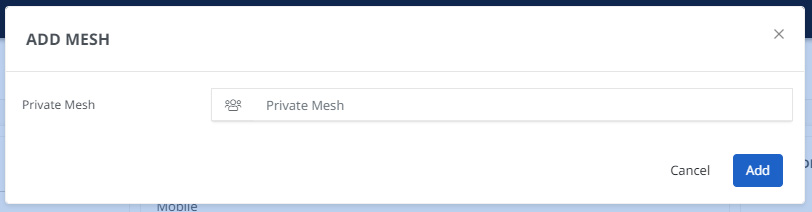
Add API Token
Obtain restful access to the software platform’s Application Programming Interface (API).