
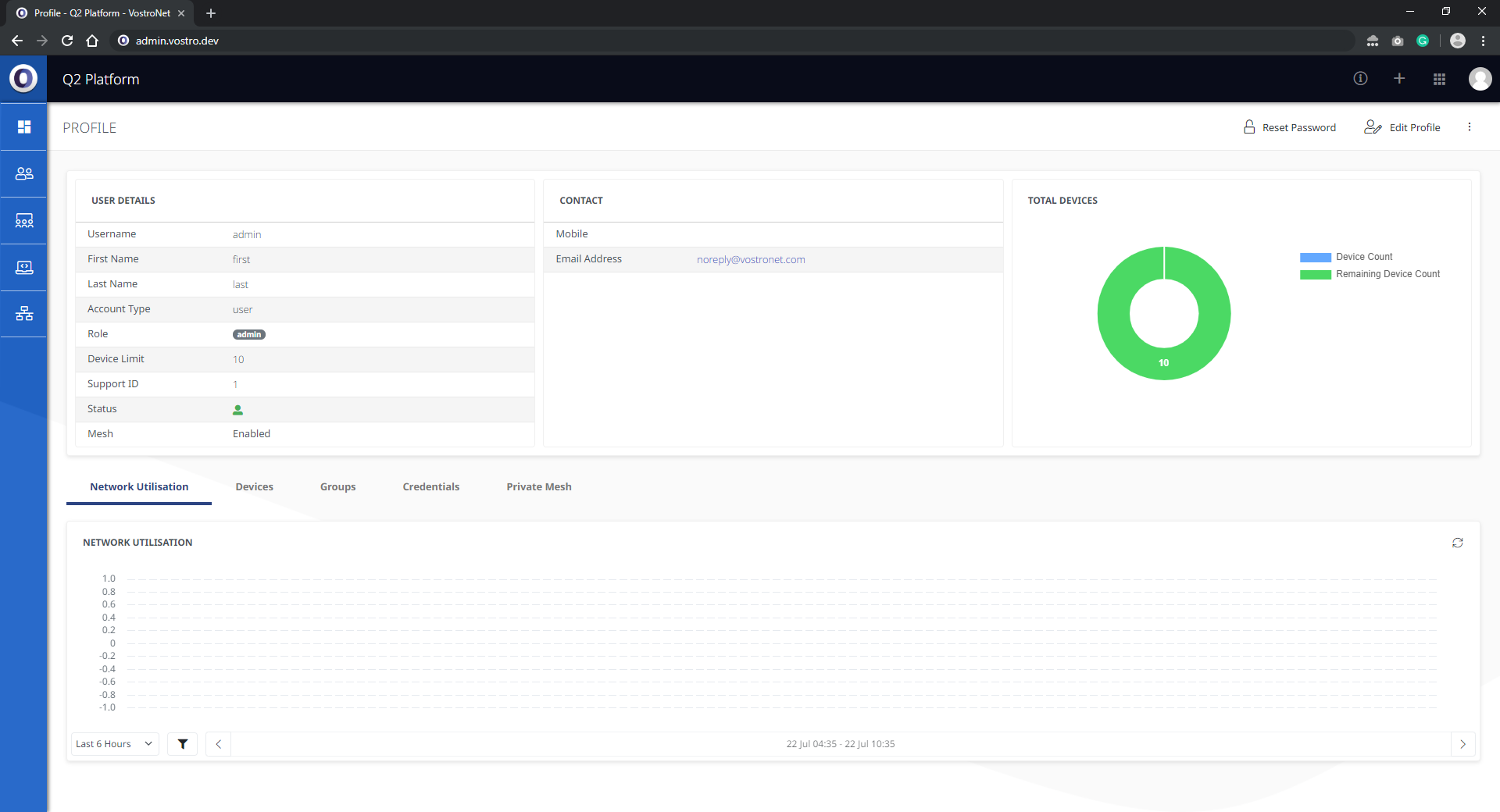
The Q2 Platform provides users with their own area to manage and monitor their account.

In the User Profile area, users are able to:
- Network Utilisation
- Update Profile
- Manage Devices
- Manage Users
- Manage Groups
- Manage Private Mesh
- Add Plan
- Advance Menu
Depending on the permissions of the user, users will be able to see and manage more or less in this section.
Network Utilisation
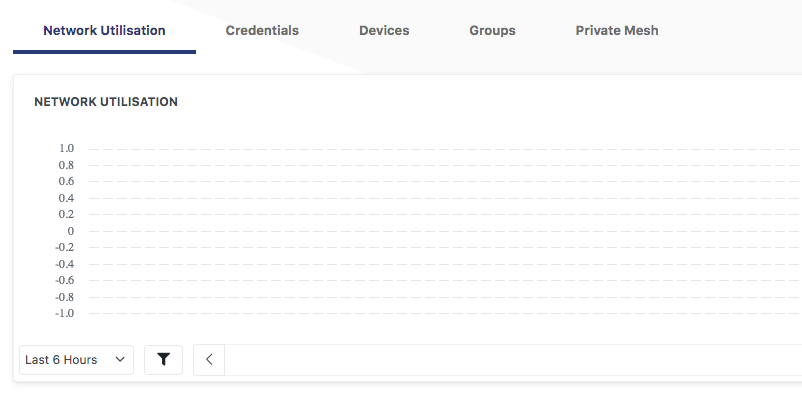
This section can is found in both the user profile and in the Dashboard section. The user profile section is your home splash screen and can be accessed by pressing the profile icon in the top right-hand corner and the dashboard can be viewed in the top left-hand corner.
In this area users are able to monitor their overall network traffic across their account.
Update Profile
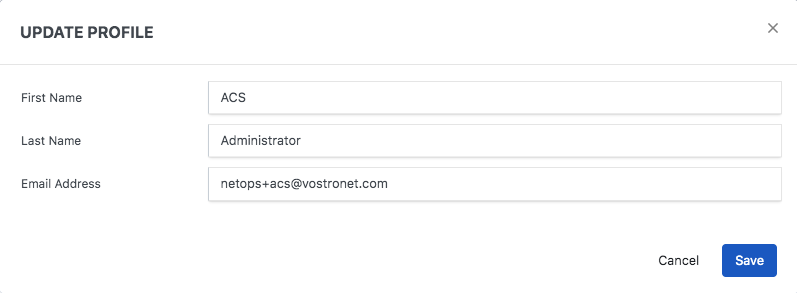
To edit your user credentials navigate to the top right-hand corner on your profile page and you will find reset password. Next, to it, you will find edit profile where you can edit your name and email
Manage Devices
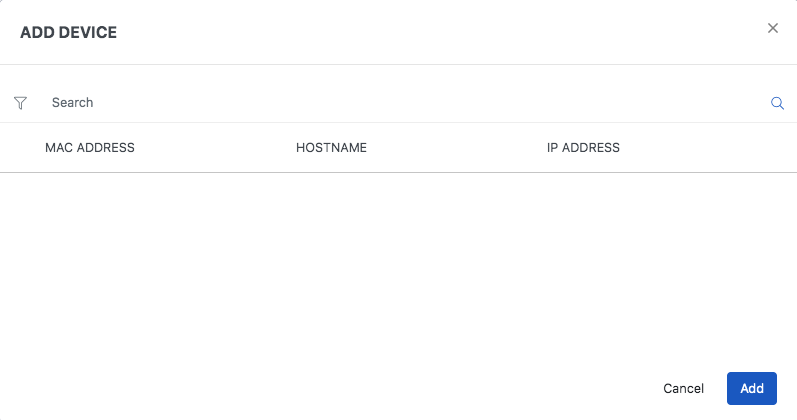
The Q2 platform allows users to manage their account devices either by going to the top right-hand corner of the profile page and clicking on the 3 dots and then selecting add a device.
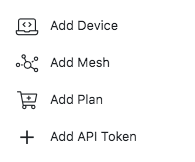
Doing so will associate the device to this user, admins will have more options to manage devices in the device section and allocate what users they belong to. You can then view your devices in the profile section in the menu tab Devices. In addition, you are able to monitor your device count and the number of devices you have available to add to your account.
Manage Users
Admins will have the ability to add and manage user accounts through the Q2 platform from the Profile page. To add a user click on the + icon in the top right-hand corner. Once a user is added you will be able to manage users in the user section located on the left-hand side menu.

Manage Groups
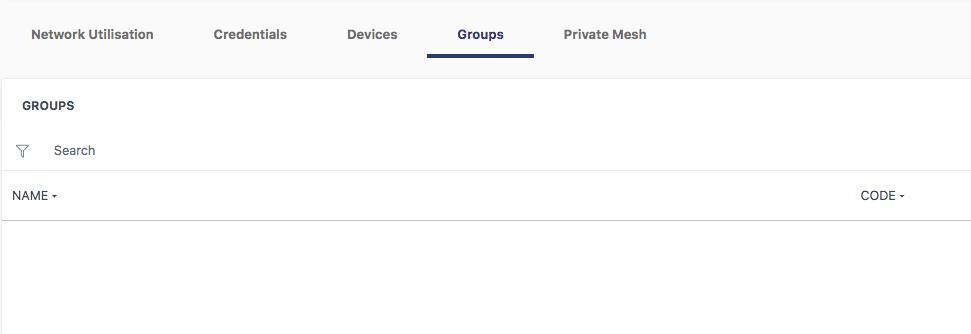
Admins will be able to manage groups and users belonging to the groups by clicking on the group’s section found on the left-hand side menu. From here users can be part of different user groups to help manage access to devices, private mesh and other access. Groups will then show up for users in their profile under the Groups Tab.
Private Mesh
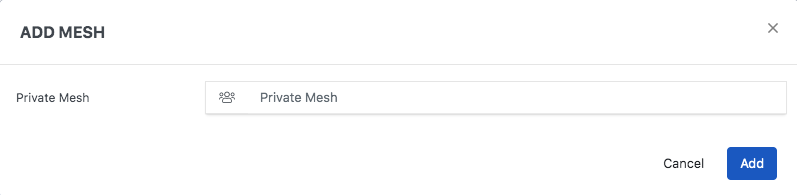
Q2’s Profile section allows you to create your own private mesh allowing you to communicate with other users devices within the same mesh. This is explained in more detail once you access the mesh section.
To create a Private mesh simply click on the 3 dots on the top right-hand corner of your Profile and click add Mesh, name it and your done. Admins will be able to manage the Mesh section through the advance on the top right-hand corner next to the profile icon.
Add Plan
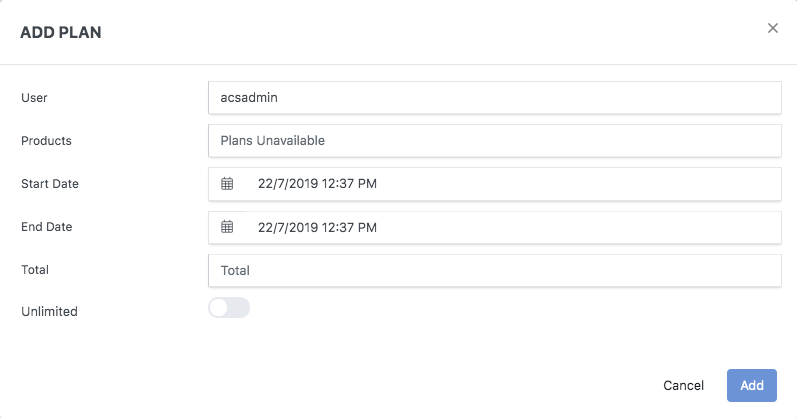
Plans can be added to accounts to manage speeds and data usage that users will use the Network Utilization to then monitor. To add a plan to the account and then start using it click on the 3 dots on the top right-hand corner of the profile page and select Add Plan.
Advance Menu
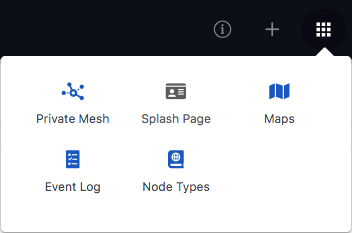
The Q2 Platform allows Admin to control manage, change and view all aspects of the platform through the Advance menu on the top right-hand corner of the screen.
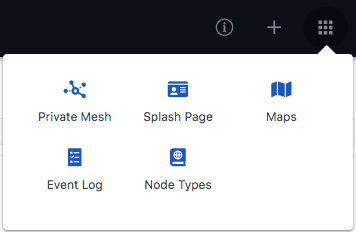
Here you are able to manage:
- Private Mesh
- Splash Page
- Maps
- Event Log
- Node Types
Details on all these and the menus and how to use them are found in their own sections once you enter them.