
Welcome to the Q2 Platform. Below are the basics to help you get started.
The platform display includes 3 elements:
1. Display window covering the main area of the display
2. Navigation bar on the left-hand side of the display
3. Header menu along the top of the display
Display Window
The display window shows the information on the selected section. 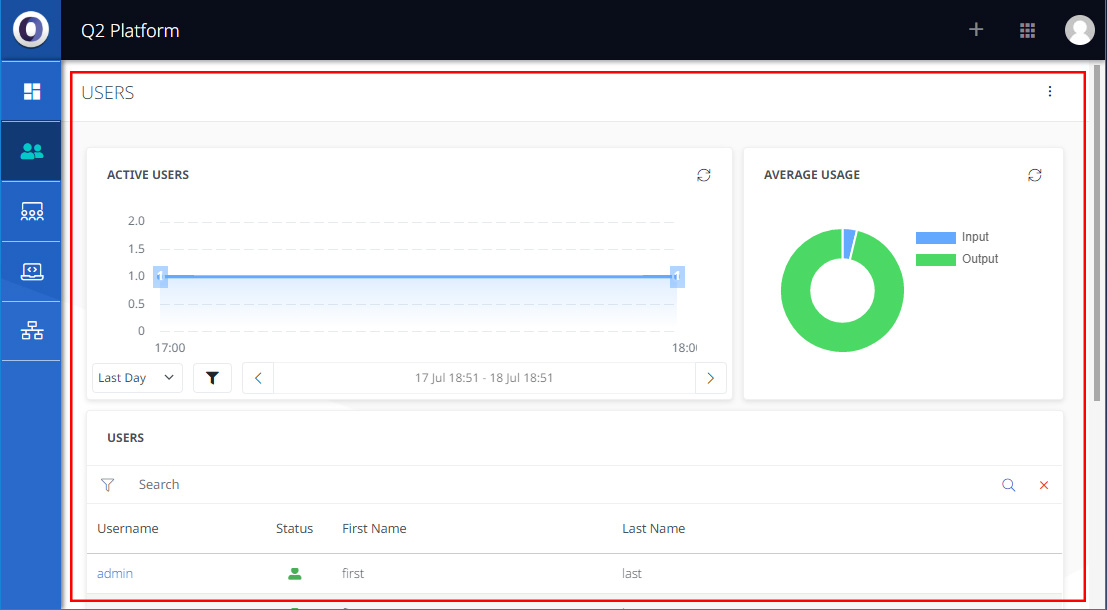
Navigation Bar
The Navigation Bar enables quick navigation to the main display sections within the Q2 Platform. Each area is described separately below. 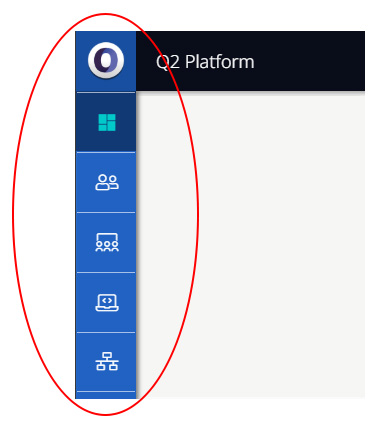
The dashboard appears on the landing page when a user logs into the Q2 Platform. Here the user will find a clear summary of the building’s network and its performance in real-time.
The Users section provides detailed information on users on the network. This section is accessed for creation of new users and administration of existing user profiles (eg. Group membership, Private mesh membership).
The Groups section provides detailed information on Groups on the network. Groups are blocks of users that the network administrator wishes to be separately identifiable (eg. different organisations or internal groups with different permission levels). This section is accessed for creation of new groups and administration of existing groups.
The Devices section provides detailed information on devices on the network. This section is accessed for addition of new devices and administration of existing devices.
The Network section provides detailed information on nodes on the network. This section is accessed for addition of new nodes and administration of existing nodes.
Header Menu
The header menu at the top of the display consists of the following buttons:
Edit
The edit button only appears on pages that can be edited or adjusted.
Add User
The add user button is a shortcut for the ‘Add User’ function. Advanced user administration is available in the User section.
Advanced Menu
The Advanced Menu contains settings and other advanced features of the platform (eg. Private Mesh). 
User Profile & Logout
Clicking on the Profile picture of the button will navigate the user to the Profile page. Logout will log the active user out of Q2 Platform.